Photo by Frankie Cordoba on Unsplash


If you handle bookings through a personal email account, you may want an address such as booking@yourband.com to share with venues and journalists. You can keep that address as people join the band or take over its admin, provided you keep the domain and email service active.
This guide is for bands, solo artists and DJs setting up an email address at their own domain. It covers choosing an address, getting an inbox, connecting the domain and checking that messages and replies go where you expect.
Use a domain registered for your music project and choose one main address someone will check regularly.
Arrange email hosting as well as the domain. Check what your existing plan includes before paying for another service.
Use aliases for additional addresses that should reach the same inbox. Separate logins and private mail require a different arrangement.
Follow your email provider's domain setup instructions, preserving any website or email service you already use.
Test incoming messages, outgoing messages and replies on your computer and phone before publishing the address.
Register a domain or use one you already have, choose an email provider, and create a mailbox such as booking@yourband.com. Connect the domain using the provider's instructions, then test receiving and replying. Add the inbox to your usual mail app and agree who will check it before publishing the address.
A custom address has two parts. In booking@yourband.com, booking is the name you choose for the mailbox, and yourband.com is the domain. You need access to that domain's settings to connect its email service.
ICANN explains the distinction between a domain and the services that use it. Registering the name gives you the domain; email hosting provides the service behind the address. A domain registration on its own may come without an inbox.
Use the domain you already use for your music, if you have one. Keeping the same spelling makes it easier to give someone your contact details after a show. If you're still deciding what to call the project, settle that first using the guide to choosing an artist or band name.
For the part before the @, choose something that describes the contact:
booking@ suits show enquiries and correspondence with venues.
hello@ suits a general contact address for listeners, collaborators and enquiries.
press@ suits publicity enquiries when someone is handling them.
Your first name suits a solo artist or musician who deals directly with clients.
You can begin with one address for everything. Giving people several choices adds work if the same person checks them all, and an address labelled press@ needs someone who will read press enquiries.
Choose who checks the inbox, then agree who replies and how the band will pass that job on. If two people handle enquiries, agree how to mark a thread as answered so a venue receives one consistent response.
Keep access to the domain and billing account recoverable too. An address can stop receiving messages if its domain expires, even when the mailbox subscription has been paid.
These options can look similar when you're buying a service. The difference becomes clear when you open a message and reply.
A mailbox has its own inbox. You sign in to read messages and send from the address attached to it.
An alias is an additional address that delivers into an existing mailbox. It usually has no separate password or private inbox. Whether you can send from the alias depends on the provider, so check that before choosing it as your public contact.
Forwarding passes incoming messages to another address, such as your personal Gmail. A forwarding-only service may provide no way to send from your custom address. When you reply, your personal address can appear unless you have also configured a supported sending service.
Take a fictional band, Morrow Arcade, with one member handling both bookings and press. These are demonstration addresses using the reserved .example ending.
| Address | Role | Where mail arrives |
|---|---|---|
booking@morrowarcade.example | Main mailbox | Booking inbox |
hello@morrowarcade.example | General-contact alias | Same inbox |
press@morrowarcade.example | Press alias | Same inbox |
In this arrangement, all three addresses reach the person handling enquiries. The aliases are receive-only, so replies go out from booking@morrowarcade.example, including replies to press enquiries.
If a publicist joins and needs a private inbox or wants to send from press@, review the setup with the provider. Look for a separate mailbox or suitable access permissions. Adding another receive-only alias would still leave their messages in the band's existing inbox.
Start with the service you already pay for. Your domain provider may offer an inbox or an email add-on. You can also use a separate email host while keeping the domain registered with its current provider.
Compare the total recurring cost for the inboxes you need. Check whether aliases cost extra, what renewal costs, and whether an advertised price requires an annual commitment. A band using one inbox has different requirements from a team needing three separate accounts.
Before choosing, confirm that you can:
Receive and send from your chosen custom address.
Read mail in a browser and in your preferred phone or desktop app.
Add any extra addresses you intend to publish.
Recover access if the person handling band admin changes.
Save or move your messages if you change providers later.
Noiseyard offers a mailbox as an optional add-on on an active paid plan with a custom domain using its nameservers. Additional addresses receive into the same inbox, and replies use the main mailbox address. The domain setup guide covers connecting an existing domain.
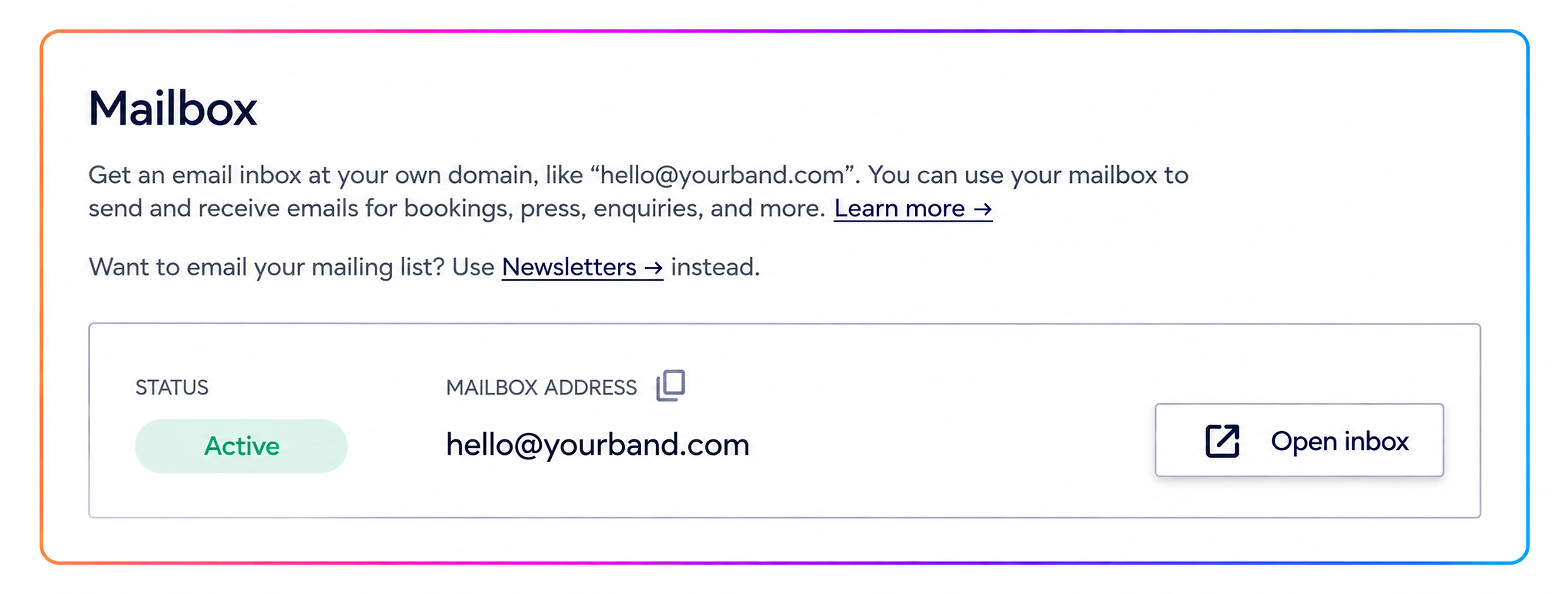
A mailbox handles individual conversations, such as a venue confirming a date. For release announcements to your fan list, use a newsletter system or mailing-list service. The email marketing tools guide covers that separate choice.
Your provider should give you a setup wizard or the records to add to your domain's DNS settings. DNS is the system that directs services at your domain to the right place. A managed service may add the records for you; otherwise, use its instructions or ask support to handle them.
The provider may ask you to verify that you control the domain. It will also need MX records, which direct incoming mail to its servers, and authentication settings for outgoing messages.
Follow its instructions for SPF, DKIM and DMARC. These help receiving services check mail sent using your domain and handle messages that fail those checks. The Internet Society's email authentication guidance explains their role in reducing forged email. Use the values supplied for your account, and ask the provider to check any existing settings before replacing them.
Before changing nameservers, confirm that your domain manager will carry over your existing website and email settings. A missing record could interrupt a service you already use.
List every address that currently works, including aliases and forwarding addresses. Create their replacements before directing new mail to the new provider. Otherwise, messages sent to an address you overlooked may be returned to the sender.
Changing where new mail arrives does not copy the messages already stored in the old inbox. If you need those conversations, use a supported import or save them before closing the old account. Import support varies by provider.
Keep the old account available for a few days after switching and check both inboxes. Some messages may still reach the old service while the change spreads. Close it once the new setup is receiving reliably and you've kept the messages you need.
Open the provider's webmail first and check that you can sign in. Then use its instructions to add the account to your usual mail app. An app that supports multiple accounts can keep your band inbox and personal inbox accessible from the same place.

If the setup uses IMAP, it can keep the mailbox synchronised across devices. Use the provider's incoming and outgoing server settings so the app can both receive and send mail.
Check the username in the provider's instructions; it is often your full email address. Use the mailbox password, which may be separate from the login for your billing account. Follow the specified security settings and check any ports after selecting the security type, since apps sometimes change them automatically.
Set a display name, such as “Morrow Arcade” or “Nora, Morrow Arcade bookings”. Check it in both webmail and your phone app; they may store that setting separately.
Ask a bandmate or friend with another email account to help. Run these checks through the app you will use day to day:
Receive a message. Have them email the main address and confirm it appears in the inbox.
Reply to it. Ask them to check the address and display name shown on your reply.
Start a new conversation. Send a fresh message from the band inbox, then ask them to reply. Confirm that their response comes back to you.
Test each alias. Send a separate message to every extra address you plan to publish, then check what address appears when you reply.
Repeat on your other device. Check that you can read the conversation and send from the correct account on your phone and computer.
If receiving works but sending fails, check the outgoing account settings against the provider's instructions. If replies show your personal address, check which account the app selected and whether you're using forwarding without a custom sending service.
You can also ask someone using a different email provider to check where a test message appears. Inbox placement can vary, even with a correctly configured custom address. Ask your provider to check authentication if messages are repeatedly filtered.
Once the tests pass, update the contact address on your site and musician EPK. Check each place you still share, including older press materials, and keep the public contact consistent.
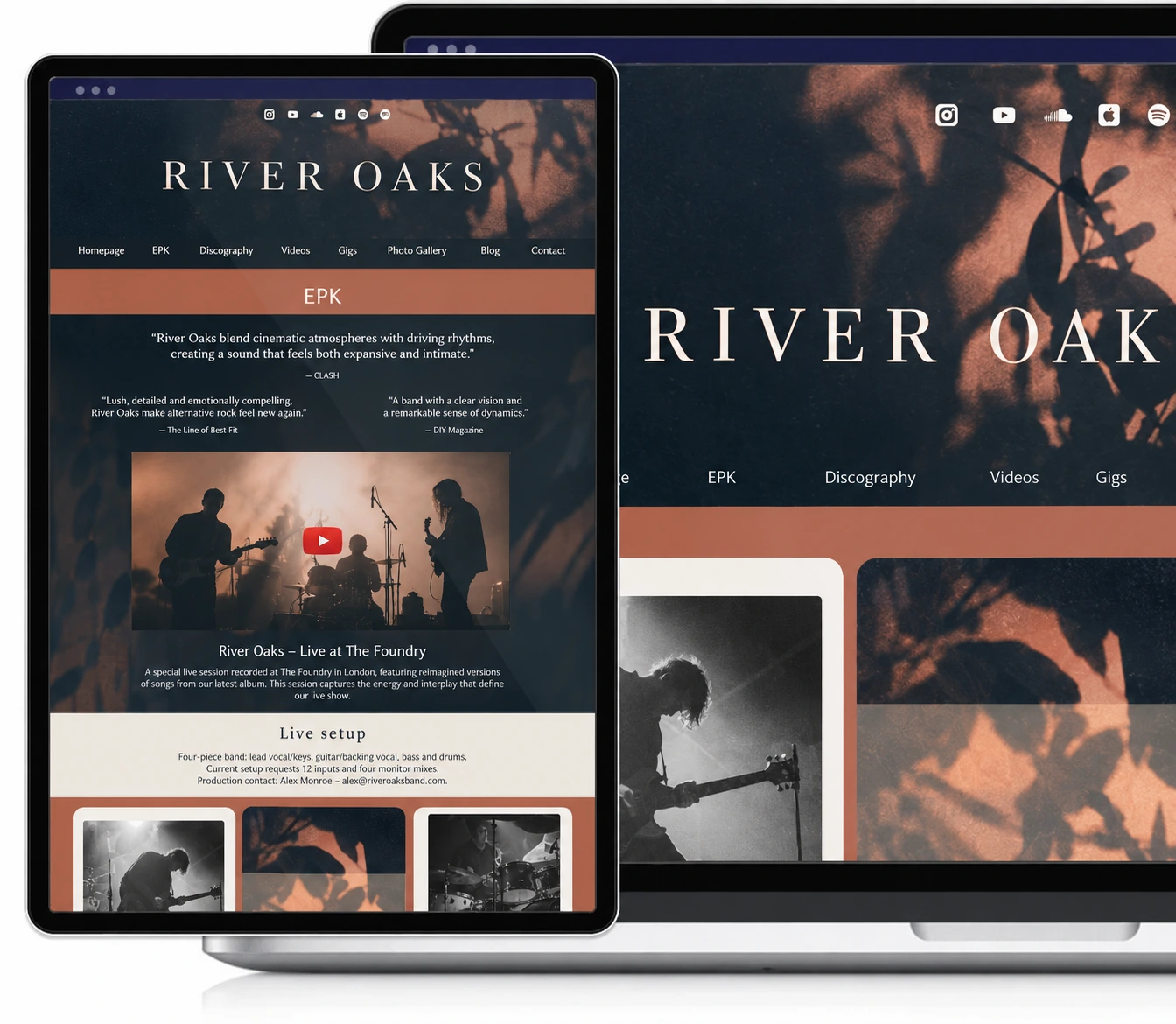
A person reading your email may visit its domain to hear your music or check your live dates. Give them a current page with your music and contact details. The music website mistakes guide covers making that contact easy to find.
Build your own musician website
Music player, store, EPK, and mailing list, all built in. Start your 30-day free trial, cancel anytime.
Buying an address without checking replies. A forwarding service can receive a booking enquiry while leaving your response attached to your personal account. Test both directions.
Publishing addresses you haven't created. Writing press@ on an EPK does not make it receive mail. Set it up and test it first.
Treating aliases as private accounts. They deliver into the mailbox they belong to. Check who can read that inbox before directing someone's correspondence there.
Switching email before preserving old messages. Copy or save any conversations you need and keep the old account until the change has settled.
Leaving the inbox unchecked. Assign someone to monitor it during the week and arrange cover when that person is away.
Losing access to the domain. Keep registration, renewal and recovery details accessible to the person responsible for band admin.
Do I need a website to have a custom band email address?
You need a domain and an email service; a public website is optional. If you also have a site at the same domain, recipients can visit it to hear your music and find your contact details.
Can I keep using my personal Gmail account?
Yes. Keep it for personal messages and add the band mailbox to a supported mail app if you want access to both. Check which account you're sending from when you start or reply to a conversation.
Can booking and press addresses go to the same inbox?
Yes, if your provider supports aliases. Check whether they only receive mail or also allow sending. On a receive-only setup, a message to press@ can reach the booking inbox, with the reply sent from the main booking address.
Can I keep the address when I change email providers?
Usually, if you retain the same domain. Create the address at the new provider, preserve any aliases and update the mail settings. Moving old messages is a separate step, so check import options before cancelling the previous service.
Do I need a custom email address to get booked?
A clearly named Gmail or other personal account can handle bookings. A custom address helps keep correspondence under your artist name as responsibilities change. The message and your music still matter; the guide to pitching your EPK covers what to send a venue.
After setting up the inbox, save the provider and renewal details where the person handling band admin can find them. Agree who checks messages, confirm that your public contact details match the tested address, and revisit access whenever someone takes over the job.
Get our new guides by email.
Practical advice on promoting your music, getting gigs and selling online. You can unsubscribe at any time.